
When you start Pocket Code, you see the following main screen.
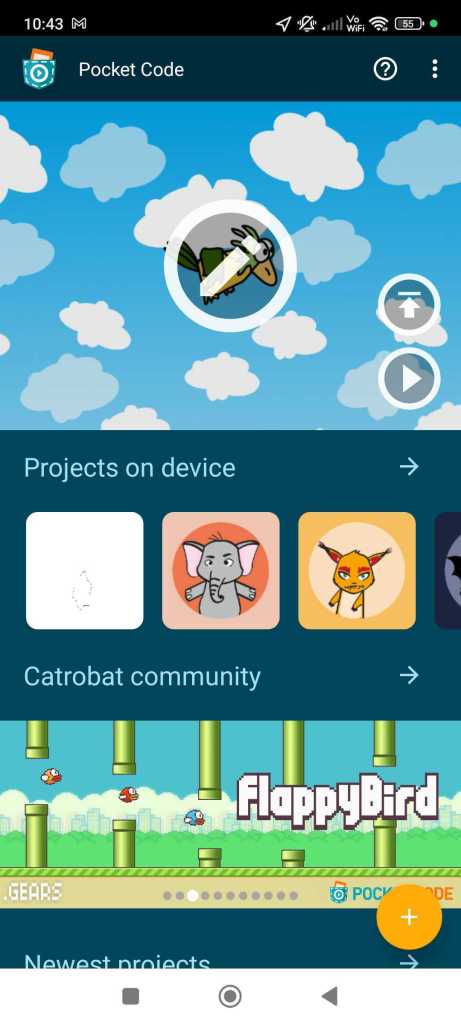
In the top right corner, there’s a  symbol that takes you to the Catrobat documentation, which has helpful tips for you.
Next to that is the menu  . From there, you can easily go to the settings, where you can change the language or turn on extensions like the plot blocks and more.
Underneath, you can see your most recently edited project. Click on the edit icon  to access the project screen, where you can continue developing your project.
Use the play button  to start your project.
With a click on Projects on device, you can access your saved projects. 
If you want to get to know and work on more projects from other users, just click on Catrobat Community on the Share. There you’ll find many great projects. 
If you want to create a new project, click on the plus icon. 
You must be logged in to post a comment.