
You can add a background to your project in Catrobat.
Backgrounds can be used in various ways. In Pocket Code, they can be utilized to visually enhance games, tell stories, or provide your actors and objects with more context.
For makerspace devices like plotters or embroidery machines, backgrounds serve as design templates, such as for cuts or embroidery patterns.
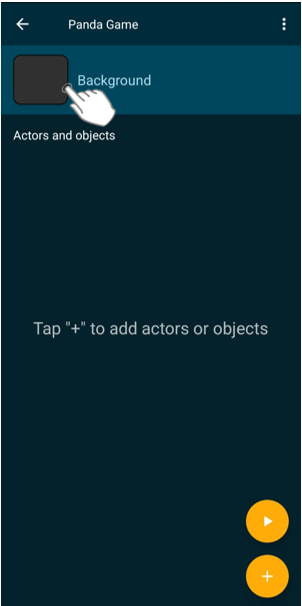
To add a background, tap on “Background” in the project view.
In the script section(2), you can program your background – however, not all blocks are available for this. The following two blocks are particularly important:  and
and 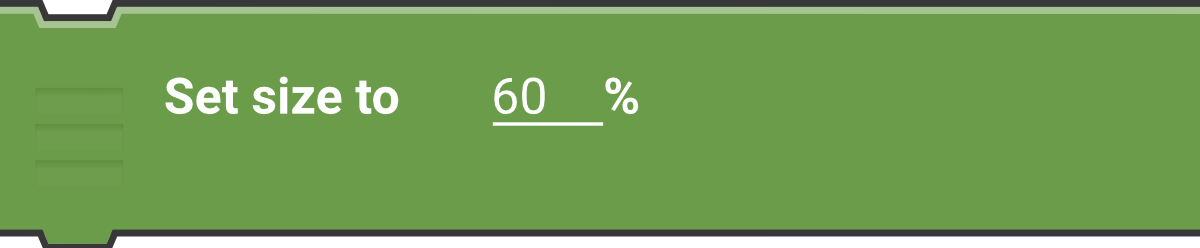
In the looks section(1), you add a background. To do this, tap the + symbol.

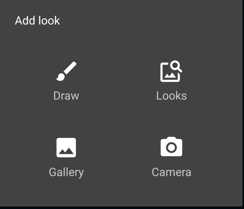
You can upload your own images, use predefined backgrounds, or create a background yourself.
Draw: You can create your own background with Pocket Paint. Pocket Paint is a drawing program (more about Pocket Paint)
Looks: Choose one from a collection of pre-made backgrounds (more about Medialibrary).
Gallery: You can choose an image from your smartphone’s gallery.
Camera: You can use your device’s camera to take a photo and add it as a background.
You have now added a background. Click the back arrow in the top right to return to the Project View.
You must be logged in to post a comment.