
In this tutorial, you will learn how to share your created projects with your friends or the whole Catrobat community.
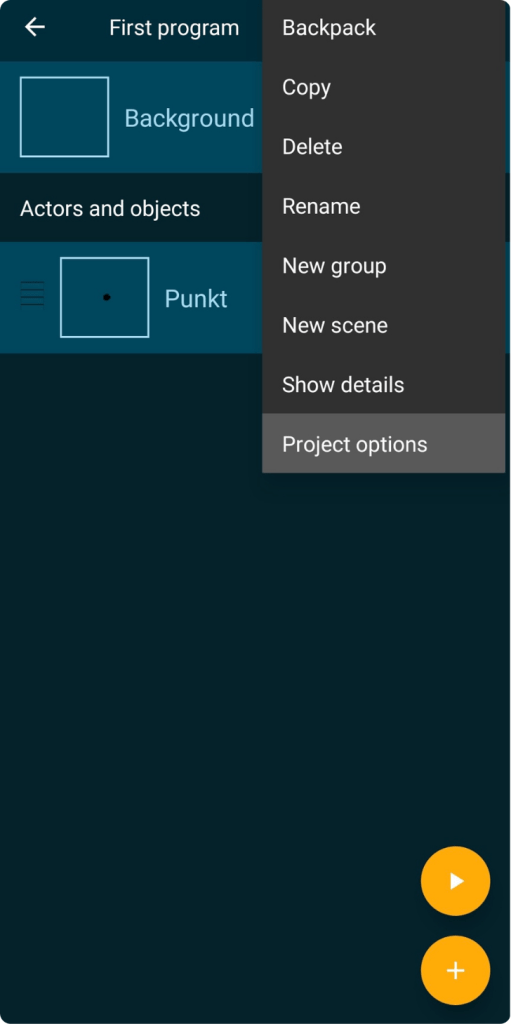
For this tutorial, you already need to have your own project that you want to share. If you don’t know how to create a project yet, check out the the New Project-tutorial to learn how it works.
Here you can download the tutorial in PDF-format:
- Project Options
If you want to upload or share your project, you have to open your project, then click at the three dots in the top right corner and then click “Project options”
- Project Options
Now you can change the name, add a description and make various settings.
You also have two options: “Upload program” and “Export project” which are explained in the following steps.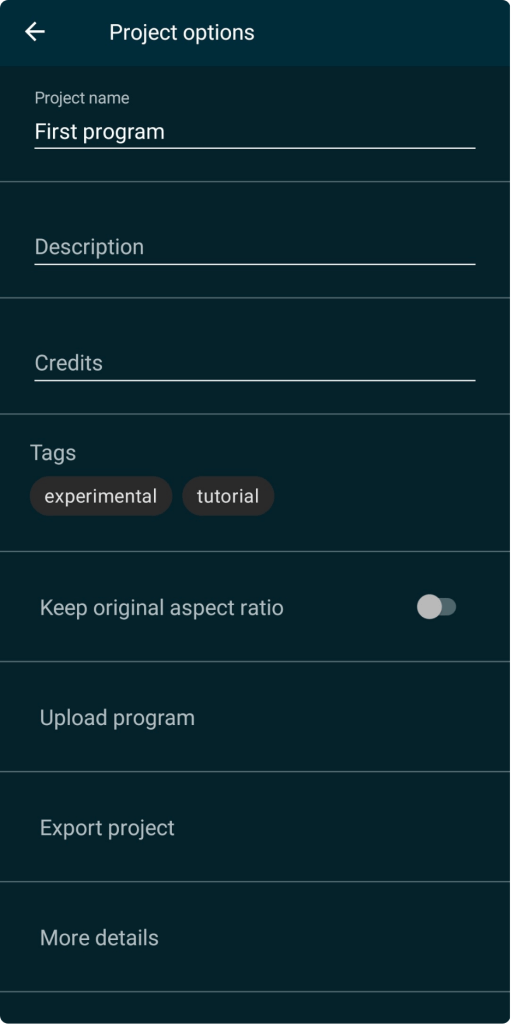
- Upload Program
If you want to upload your project to the Catrobat Share, so the whole community gets access to it, you choose Upload program.
- Upload Program
If you click on this button to upload your project to the Share, you have to sign up for an account, if you have not done yet. Alternatively you can sign in with Google. When signed in you have to give your project a name and write down a Description. Then you have to choose up to three categories which your program belongs to best.
Then click “next” to upload your program.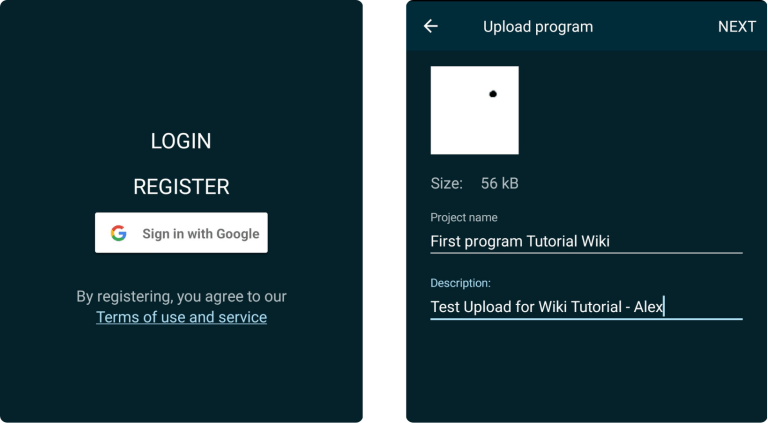
- Export Project
If you want to share your project with your friends, you choose Export project.
- Export Project
With this button you can save a .catrobat file which you can share privately to your friends. You can save it in the file explorer on your device and share it this way.

You made it! You shared your first program!
If you need help or inspiration for upcoming projects, feel free to check out our tutorials with different levels (Beginner/Medium/Pro).
You must be logged in to post a comment.